



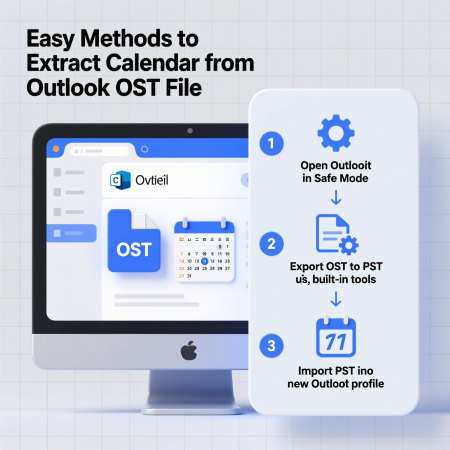
In today’s fast-paced digital world, Microsoft Outlook remains a cornerstone for professionals managing emails, contacts, and schedules. Among its powerful features, the Outlook calendar stands out as a critical tool for organizing meetings, events, and tasks. However, extracting calendar data from an Outlook OST file can be a daunting task, especially when the file is inaccessible, corrupted, or disconnected from the Exchange Server. We understand the importance of safeguarding and accessing your calendar data efficiently. This comprehensive guide provides detailed, step-by-step methods to extract calendar from Outlook OST file, ensuring you can retrieve and utilize your scheduling data seamlessly. Whether you’re a business professional, IT administrator, or casual user, we’ve crafted this article to offer both manual and professional solutions, enriched with practical insights and advanced techniques to meet your needs.
Understanding OST Files and Their Importance
An OST file (Offline Storage Table) is a local copy of your mailbox data stored on your computer when using Microsoft Outlook with an Exchange Server. It contains emails, contacts, calendars, tasks, and other items, allowing you to work offline and synchronize changes once reconnected to the server. The Outlook calendar within an OST file is particularly valuable, as it holds critical scheduling information that drives productivity. Extracting this calendar data is often necessary for:
- Backup Purposes: To prevent data loss due to corruption or system failure.
- Migration: When switching to a new email client or platform.
- Sharing: To share calendar events with non-Outlook users.
- Accessibility: To access calendar data in a more portable format like ICS or PST.
However, extracting calendar data from an OST file can be challenging due to its proprietary nature and dependency on Outlook and Exchange Server connectivity. We’ll explore both manual and automated methods to extract calendar from Outlook OST file, ensuring you have the tools and knowledge to succeed.
Why Extract Calendar Data from OST Files?
Before diving into the methods, let’s explore the reasons why extracting calendar data from an OST file is essential:
- Data Security: Storing calendar data in the cloud or on a server carries risks of corruption or loss. Extracting it to a local, portable format ensures a secure backup.
- Cross-Platform Compatibility: Converting calendar data to formats like ICS allows access on various platforms, including Google Calendar or Apple Calendar.
- Migration Needs: When transitioning to a new email client, extracting calendar data ensures continuity of your schedule.
- Collaboration: Sharing calendar events with colleagues or clients who don’t use Outlook requires a universal format.
- Recovery from Corruption: Corrupted OST files can lock you out of your calendar. Extraction tools help recover this data.
With these needs in mind, we’ll outline the most effective methods to extract calendar from Outlook OST file, starting with manual approaches and progressing to professional solutions.
Method 1: Manual Extraction Using Outlook’s Import/Export Wizard
Microsoft Outlook provides a built-in Import/Export Wizard that allows users to extract calendar data from an OST file and save it as a PST file or CSV file. This method is free, accessible, and suitable for users with an active Outlook profile connected to an Exchange Server. Below, we provide detailed steps for different Outlook versions, as the process varies slightly.
Steps for Outlook 2013, 2016, and 2019
- Launch Microsoft Outlook: Open the Outlook application on your computer. Ensure it’s connected to the Exchange Server and the OST file is accessible.
- Navigate to the File Menu: Click on the File tab in the top-left corner of the Outlook window.
- Access Import/Export: Select Open & Export, then click on Import/Export to launch the Import and Export Wizard.
- Choose Export Option: In the wizard, select Export to a file and click Next.
- Select File Type: Choose Outlook Data File (.pst) or Comma Separated Values (.csv), depending on your preference. For calendar data, PST is recommended for compatibility with Outlook, while CSV is useful for importing into other applications. Click Next.
- Select Calendar Folder: From the list of mailbox folders, select the Calendar folder. Check the Include subfolders box to ensure all calendar events, including recurring ones, are exported. Click Next.
- Specify Save Location: Click Browse to choose a destination folder on your computer where the exported file will be saved. Provide a file name and click OK.
- Finalize Export: Click Finish. You may be prompted to set a password for the PST file (optional). Once completed, the calendar data will be saved in the specified location.
Steps for Outlook 2010
- Open Outlook: Launch Microsoft Outlook and ensure the OST file is accessible.
- Go to File > Options: Click File, then select Options from the menu.
- Access Advanced Settings: In the Outlook Options window, click Advanced.
- Initiate Export: Under the Export section, click the Export button to open the Import and Export Wizard.
- Select Export to a File: Choose Export to a file and click Next.
- Choose File Type: Select Outlook Data File (.pst) or Comma Separated Values (.csv) and click Next.
- Select Calendar: Choose the Calendar folder, check Include subfolders, and click Next.
- Set Destination: Browse to select a save location, name the file, and click OK.
- Complete the Process: Click Finish to export the calendar data.
Steps for Outlook 2007
- Start Outlook: Open Microsoft Outlook and verify that the OST file is accessible.
- Access Import/Export: Click File, then select Import and Export.
- Choose Export Option: Select Export to a file and click Next.
- Select PST File: Choose Personal Folder File (.pst) and click Next.
- Select Calendar Folder: Pick the Calendar folder, check Include subfolders, and click Next.
- Specify Save Location: Browse to choose a destination folder, name the file, and click OK.
- Finalize Export: Click Finish to complete the extraction.
Limitations of the Manual Method
While the manual method is cost-effective, it has significant limitations:
- Exchange Server Dependency: The OST file must be connected to an active Exchange Server. Orphaned or disconnected OST files cannot be processed.
- Outlook Requirement: You need an installed and functional Outlook application.
- Corruption Issues: If the OST file is corrupted or inaccessible, this method will fail.
- Time-Consuming: For large OST files or multiple calendars, the process can be slow.
- Data Integrity Risks: Manual extraction may lead to data loss if not performed correctly.
For users facing these challenges, professional tools offer a more reliable solution to extract calendar from Outlook OST file.
Method 2: Viewing Calendar Data via Exchange Server
In some cases, you may only need to view calendar data without extracting it. This method involves synchronizing Outlook with the Exchange Server to access the OST file’s calendar. This approach is useful for troubleshooting or verifying calendar contents before extraction.
Steps to View Calendar Data
- Close Outlook: Ensure Microsoft Outlook is not running.
- Access Control Panel: Open the Control Panel on your computer.
- Navigate to Mail Settings: Click on Mail (Microsoft Outlook).
- Select Exchange Account: In the Mail Setup window, select your Exchange account and click Change.
- Disable Cached Exchange Mode: Uncheck Use Cached Exchange Mode and click More Settings.
- Modify Offline Settings: Go to the Advanced tab, click Offline Folder File Settings, and select Disable Offline Use. Click Yes to confirm.
- Re-enable Cached Exchange Mode: Return to the previous window, re-check Use Cached Exchange Mode, and click OK, then Next, and Finish.
- Restart Outlook: Launch Outlook and navigate to the Calendar section to view the calendar data.
Limitations of Viewing via Exchange Server
- No Extraction: This method only allows viewing, not exporting, calendar data.
- Server Dependency: Requires an active Exchange Server connection.
- Not Suitable for Offline Files: Inaccessible or orphaned OST files cannot be viewed.
For actual extraction, you’ll need to use the Import/Export method or a professional tool.
Method 3: Using Professional OST to PST Converter Tools
When manual methods are insufficient—due to corrupted files, lack of Exchange Server connectivity, or the need for bulk extraction—professional OST to PST Converter tools provide a robust solution. These tools are designed to extract calendar from Outlook OST file efficiently, even in challenging scenarios. Below, we outline the features of these tools and provide a step-by-step guide using a hypothetical but representative tool, “Advanced OST Converter.”
Benefits of Professional Tools
- Handle Corrupted Files: Recover and extract data from damaged or inaccessible OST files.
- No Outlook Dependency: Work without an active Outlook installation or Exchange Server connection.
- Multiple Format Support: Export calendars to PST, ICS, CSV, or other formats for compatibility.
- Bulk Processing: Extract calendars from multiple OST files simultaneously.
- Data Integrity: Ensure no data loss during conversion.
- User-Friendly Interface: Simplify the process for non-technical users.
Steps to Extract Calendar Using Advanced OST Converter
- Download and Install: Download the Advanced OST Converter from its official website and install it on your Windows computer.
- Launch the Tool: Run the software with administrator privileges.
- Add OST File: Click Browse or Add File to select the OST file from your system. The tool will scan and display the file’s contents.
- Select Calendar: In the tree-structured interface, navigate to the Calendar folder. Check the box to select it for extraction.
- Choose Output Format: Select the desired output format, such as PST for Outlook compatibility or ICS for cross-platform use.
- Apply Filters (Optional): Use advanced filters (e.g., date range, event type) to extract specific calendar items.
- Specify Save Location: Browse to choose a destination folder for the exported file.
- Initiate Conversion: Click Convert or Export to start the process. The tool will extract the calendar data and save it in the chosen format.
- Verify Output: Open the exported file in Outlook (for PST) or another calendar application (for ICS) to confirm the data.
Recommended Professional Tools
Several trusted tools can help extract calendar from Outlook OST file. Some popular options include:
- SysTools OST Converter: Known for its intuitive interface and support for corrupted files.
- Kernel OST to PST Converter: Offers advanced recovery features and detailed previews.
- DRS OST to PST Converter: Supports multiple formats and bulk processing.
- Recoveryfix for OST to PST: Ideal for repairing and extracting data from damaged OST files.
- CubexSoft OST Converter: Provides fast conversion and compatibility with all Outlook versions.
Each tool has unique features, so choose one based on your specific needs, such as budget, file size, or additional functionalities like email or contact extraction.
Method 4: Drag-and-Drop Technique for Calendar Extraction
For users seeking a quick, manual alternative, the drag-and-drop method allows you to extract calendar from Outlook OST file by transferring events directly to a folder. This method is less common but useful for small-scale extractions.
Steps for Drag-and-Drop Extraction
- Open Outlook: Launch Microsoft Outlook and ensure the OST file is accessible.
- Navigate to Calendar: Go to the Calendar section in the Outlook navigation pane.
- Select Events: Highlight the calendar events you want to extract. Use Ctrl+click to select multiple events or Ctrl+A for all events.
- Drag to Desktop: Drag the selected events to your desktop or a designated folder. Outlook will save them as .msg files.
- Convert to ICS (Optional): To make the events compatible with other calendar apps, open each .msg file in Outlook, then save it as an ICS file by selecting File > Save As > iCalendar Format (.ics).
Limitations of Drag-and-Drop
- Manual Effort: Requires selecting and dragging each event individually, which is time-consuming for large calendars.
- Format Limitations: Events are initially saved as .msg files, requiring additional conversion for non-Outlook use.
- Outlook Dependency: Requires a functional Outlook installation and Exchange Server connection.
Method 5: Extracting Calendar to ICS Format Without Outlook
For users without access to Outlook or an Exchange Server, professional tools like SysConverter for OST can directly convert OST calendars to ICS format, a universal standard for calendar data. This method is ideal for orphaned or inaccessible OST files.
Steps to Extract to ICS Format
- Install SysConverter for OST: Download and install the tool on your Windows system.
- Add OST File: Launch the software, click Open, and select Email Data File > OST File > Select File or Folder.
- Preview Calendar Data: The tool will display a preview of the OST file’s contents. Navigate to the Calendar folder.
- Select ICS Format: Click Export and choose ICS as the output format.
- Apply Filters: Use filters like date range or event type to extract specific calendar items.
- Choose Save Location: Browse to select a destination folder for the ICS file.
- Start Conversion: Click Save to export the calendar data. The ICS file can be imported into Google Calendar, Apple Calendar, or other platforms.
Benefits of ICS Format
- Universal Compatibility: ICS files are supported by most calendar applications.
- Portability: Easily share or transfer calendar data across platforms.
- No Outlook Required: Works with orphaned or corrupted OST files.
Comparing Manual and Professional Methods
To help you choose the best approach to extract calendar from Outlook OST file, we’ve compiled a comparison of manual and professional methods:
| Criteria | Manual Method (Import/Export) | Professional Tool |
|---|---|---|
| Cost | Free | Paid (with free trials) |
| Outlook Dependency | Required | Not required |
| Exchange Server | Required | Not required |
| Corrupted OST Support | Not supported | Supported |
| Output Formats | PST, CSV | PST, ICS, CSV, and more |
| Speed | Slow for large files | Fast, even for bulk files |
| Ease of Use | Technical knowledge needed | User-friendly interface |
| Data Integrity | Risk of loss if mishandled | High integrity guaranteed |
Professional tools are generally recommended for their reliability, especially when dealing with large, corrupted, or orphaned OST files.
Best Practices for Extracting Calendar Data
To ensure a smooth extraction process, follow these best practices:
- Backup Your OST File: Before attempting any extraction, create a copy of the OST file to prevent data loss.
- Verify File Health: Use tools like ScanPST.exe to check for OST file corruption before manual extraction.
- Choose the Right Format: Select PST for Outlook use or ICS for cross-platform compatibility.
- Test Professional Tools: Use free trial versions to evaluate a tool’s effectiveness before purchasing.
- Update Outlook: Ensure your Outlook application is up to date to avoid compatibility issues.
- Secure Your Data: Use password protection for exported PST files to prevent unauthorized access.
Troubleshooting Common Issues
During the extraction process, you may encounter issues. Here’s how to address them:
- OST File Inaccessible: If Outlook cannot access the OST file, use a professional tool to recover and extract the calendar.
- Corrupted OST File: Run ScanPST.exe or use an OST recovery tool to repair the file before extraction.
- Exchange Server Disconnected: Switch to a professional tool that doesn’t require server connectivity.
- Large File Size: For large OST files, professional tools are faster and more reliable than manual methods.
- Data Loss During Export: Ensure you select Include subfolders and verify the exported file before deleting the original.
Advanced Tips for IT Administrators
For IT professionals managing multiple OST files or enterprise-level data, consider these advanced strategies:
- Batch Processing: Use professional tools with batch conversion capabilities to extract calendars from multiple OST files simultaneously.
- Automated Backups: Schedule regular OST file backups using scripts or third-party software to minimize data loss risks.
- Cloud Migration: Some tools allow direct migration of calendar data to cloud platforms like Office 365 or Google Calendar.
- Data Filtering: Use advanced filters to extract specific calendar events, such as meetings within a date range or recurring events.
- Audit Trails: Choose tools that generate conversion reports for tracking and auditing purposes.
Recommendations and Suggestions
To extract calendar from Outlook OST file efficiently, we recommend the following:
- Start with Manual Methods: If you have an active Outlook profile and Exchange Server connection, try the Import/Export Wizard for a cost-free solution.
- Invest in Professional Tools: For corrupted, orphaned, or large OST files, use trusted tools like SysTools OST Converter or Kernel OST to PST Converter.
- Regular Backups: Maintain regular backups of your OST files to prevent data loss.
- Choose ICS for Flexibility: If sharing or migrating calendar data, export to ICS format for universal compatibility.
- Test Before Full Conversion: Use demo versions of professional tools to ensure they meet your needs.
Frequently Asked Questions
- What is an OST file?
An OST file is an Offline Storage Table used by Microsoft Outlook to store a local copy of mailbox data, including emails, calendars, and contacts. - Why can’t I access my OST file?
OST files may become inaccessible due to corruption, lack of Exchange Server connectivity, or a missing Outlook profile. - Can I extract calendar data without Outlook?
Yes, professional tools like SysConverter for OST can extract calendar data without Outlook or an Exchange Server. - What is the ICS format?
ICS (iCalendar) is a universal calendar format supported by most calendar applications, including Google Calendar and Apple Calendar. - Is the manual method safe for extracting calendars?
The manual method is safe if the OST file is healthy and Outlook is connected to the Exchange Server, but it carries risks of data loss if mishandled. - Can I extract calendars from a corrupted OST file?
Yes, professional OST to PST Converter tools can recover and extract calendars from corrupted or inaccessible OST files. - What formats can I export my calendar to?
Common formats include PST (for Outlook), ICS (for cross-platform use), and CSV (for spreadsheet applications). - How long does it take to extract a calendar?
The time depends on the OST file size and method. Manual methods are slower, while professional tools are faster, especially for large files. - Can I extract multiple calendars at once?
Yes, professional tools support bulk extraction of calendars from multiple OST files. - Do I need an Exchange Server to extract calendars?
No, professional tools can extract calendars without an Exchange Server connection. - Is it possible to extract only specific calendar events?
Yes, many professional tools offer filters to extract events based on date, type, or other criteria. - What happens if my OST file is password-protected?
Professional tools can often handle password-protected OST files, provided you have the correct credentials. - Can I share extracted calendar data?
Yes, exporting to ICS format allows you to share calendar data with non-Outlook users. - Are professional tools expensive?
Prices vary, but many tools offer free trials or affordable licensing options. Check official websites for details. - How do I verify the extracted calendar data?
Open the exported file in Outlook (for PST) or another calendar app (for ICS) to confirm the data’s integrity.


